Simulator: Filesystem


Simulator: Filesystem |
|
|
This window simulates the file systems on the RTCU devices.
The directory page shows the contents of the selected media.
The page is split into three groups: the media drop-down menu, the directory tree, and the file list. The directory tree shows the directories of the selected media, and the file list shows the files in the selected directory.
The media drop-down menu allows for selecting between the SD-CARD, the internal flash drive and the project drive.
Right-click in the directory tree or the file list for the context menus.
Create Directory This creates a new directory in the selected directory. Note that the directory name can only be 8 characters long.
Delete Directory This removes the selected directory. The directory must be empty in order to be deleted.
Quick format media This performs a quick format of the media. Note that all directories and files will be lost.
Import This import a file to the current directory
Export This exports the selected file.
Delete File This removes the selected file.
Rename File With this, the selected file can be renamed.
Select All This is used for selecting all the files in the current directory.
Double-click on a file to see its contents.
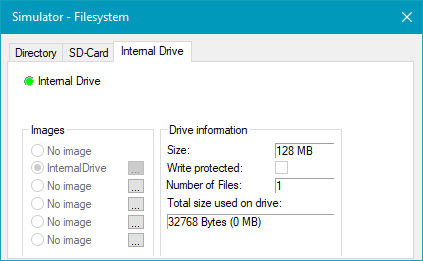
The SD-Card and Internal Drive pages are used to control which drive images to use for the file systems.
SD-CARD present/Internal Drive This LED shows the state of the SD-CARD or the internal drive.
Drive information This shows information regarding the selected image for the SD-CARD or internal drive.
Images Select the drive image to use. The name of the each image file is shown. It will display "No image" if no image file has been selected.
Note that when the simulator is running, it takes 5 seconds from a new SD-CARD image is selected until it is present. Note that it is not possible to change the image use for the internal drive while the simulator is running.
The "..." button opens the image setup dialog. Note that it is not possible to configure the currently selected image.
Select an existing or new image file using the "..." button.
If a new file is selected, the image size can be selected in the drop down. For existing files, the drop down will show the size of the image which can not be changed.
The image can be made write protected by using the check box.
|