Simulator: Main Window


|
Simulator: Main Window |
|
|
The "Simulator Main Window" controls all other windows associated with the Simulator.
It also controls the execution of the application, making it possible to restart and stop the application as needed.
Clicking the buttons makes it is possible to open and close the dialogs for the different parts enable of the simulator. The buttons show if the associated dialog is open or not.
This means that unneeded dialogs can be closed, reducing the number of dialogs that needs to be open at the same time.
The Simulator remembers the modifications made to the operation, which windows are enabled, their position etc, so it is not necessary to set up the Simulator every time RTCU M2M studio and/or the Simulator is started.
When the "Hide Simulator" button is pressed, the simulation (if started) will continue to run, but all visible windows that belong to the Simulator, will be hidden. They will be made visible when the Simulator is activated once again.
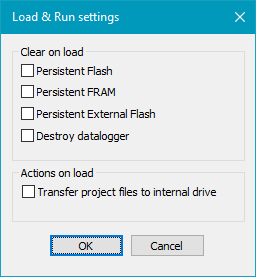
Load & Run settingsThe button next to "Load & Run" opens the "Load & Run settings" dialog, which makes it possible to automatically perform certain actions when starting the application:
Clear on load: The options in this section will clear the selected type of memory when "Load & Run" is clicked. This is useful for e.g. testing the initialization of persistent memory, without having to manually clear it before each run.
Actions on load: Transfer project files to internal drive This option can be used with NX32L project and will transfer the user files for the internal drive to the simulated internal drive when "Load & Run" is clicked.
This can be used both to transfer a bunch of files to the internal drive for the initial setup of an application and to files that have been altered or deleted by the application. Depending on the size and amount of files to transfer, the transfer may take some time, so the options should be disabled when not needed.
|