Chapter 2, Create a Project


Chapter 2, Create a Project |
|
|
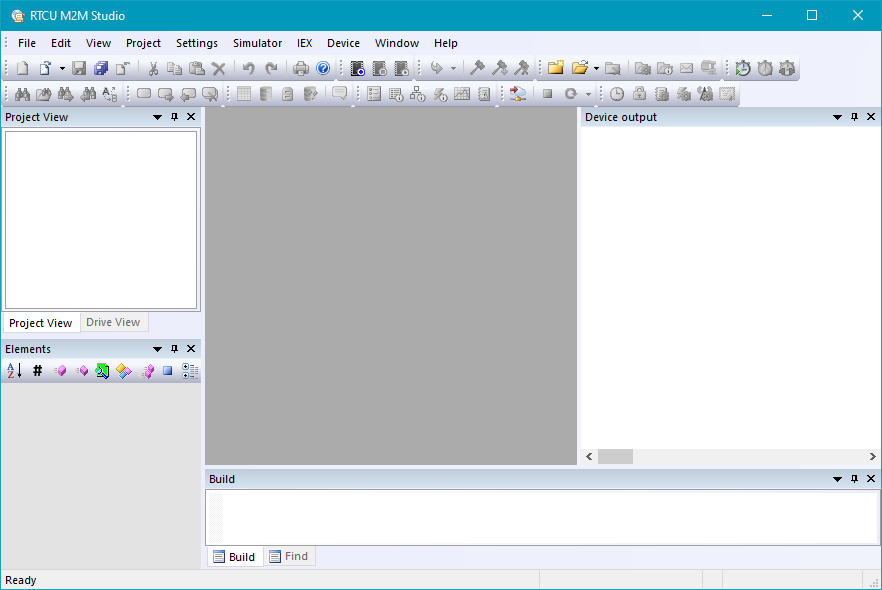
We begin this tutorial by starting up the RTCU M2M Studio. Find the shortcut for program in the Start menu and run the RTCU M2M Studio program. You should see something that looks like this:
This is the RTCU M2M Studio we will use throughout this tutorial. This development environment has a lot of features and functions, and some of these will be used in this tutorial, whereas some will not be needed. You will always be able to seek help in the online help system. At the end of this tutorial, you will be well-prepared to experiment and learn more about all the many features of the RTCU M2M Studio.
So, the RTCU M2M Studio is now running. We start by creating a new project. The project encapsulates all the different components of an application - namely program code, voice messages, configuration etc.
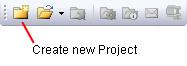
Click on the "New Project" icon on the Project toolbar to create a new project:
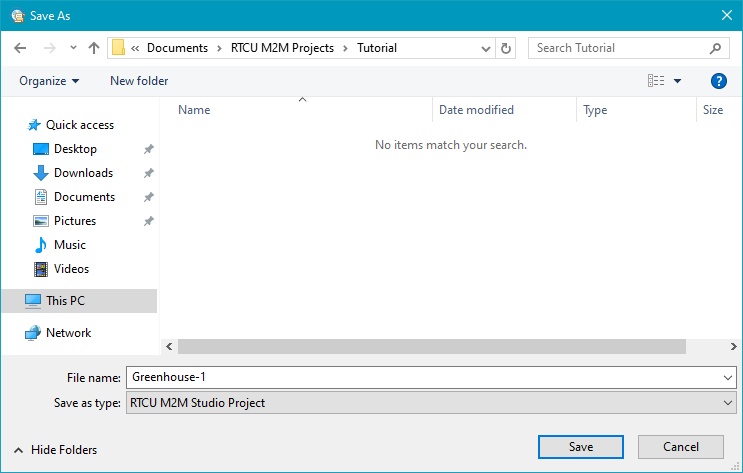
You will then see a dialog asking you the name of your new project. It is generally a good idea to create a new directory on your hard disk for each new project, and then keep all the files related to the project in this directory. In the following example, we create a directory named "Tutorial" (by clicking on the "New Directory" icon in the dialogue), select it by double-clicking on the name "Tutorial". We name the new project "Greenhouse-1". You should see something very similar to this:
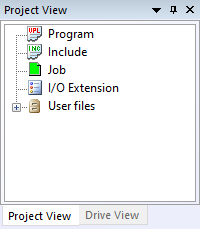
Press the "Save" button, and the RTCU M2M Studio project view tree should look like this:
The project view shows which Program files, Job files, and Voice messages the project currently consists of. In our case, the project is pretty much empty, because we have yet to add any program code etc. to it. That is next!
Chapter 3 Create the program file
|